
Enable Website Booking Forms
Taskly allows you to link or embed booking forms into your website or social media pages so that you can capture and feed new leads in for immediate quoting. The following article outlines the difference between the types of booking forms and how to enable them.
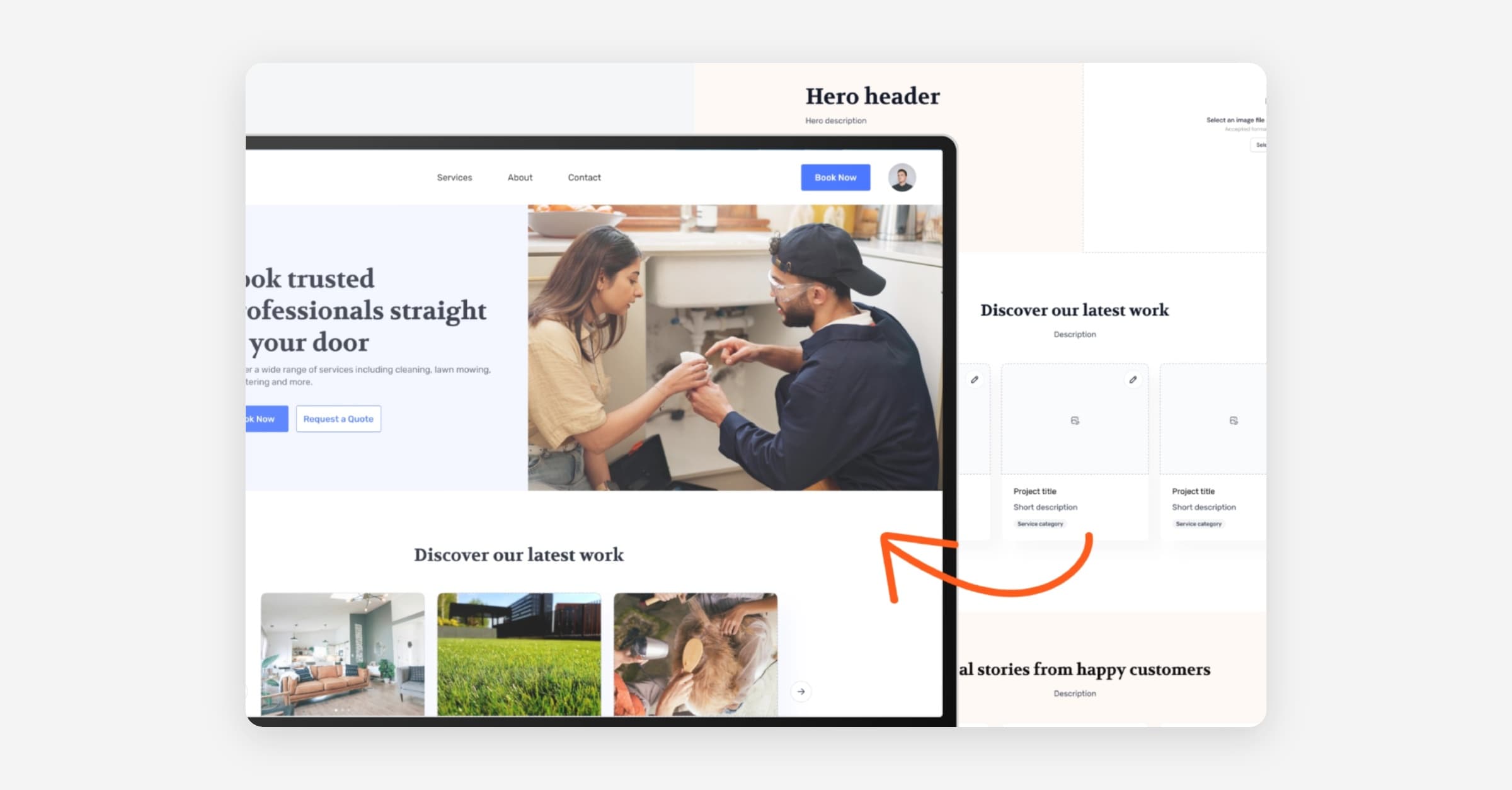
Full Booking Form, Quick Embed Form, and Bulk Booking Form
Taskly has three different types of forms you can use to create booking requests/leads. All forms are fully mobile responsive and brandable with your own logo/colours etc.
Full Booking Form (Quote Flow)
The full booking form is full screen multi-step workflow designed to allow you to capture all the information you need from your prospects to properly price a job.
The form will ask customers to provide their location, contact details, services they would like, when they would like the booking, and photos (optional).
If you have set up custom forms, the full booking form will also display these so you can capture specific information related to the services they have selected, e.g. number of bedrooms for a clean.
In order for customers to use this form, you must add the hyperlink somewhere on your website, e.g. a Book Now button or Enquire Now header menu item.
Quick Embed Form
The quick embed form is a iframe widget that you can place within any of your website pages.
It will not take customers to a separate page, like the full booking form - they can complete the form within your website page.
This is a streamlined form that only captures customers location, contact details, and asks an open ended question about what they would like.
The background can be styled to match your existing site pages. by default it will use your primary Taskly brand colour, but you can change it. Learn how to set the background colour.
Bulk Booking Form
The bulk booking form lets customers such as property managers request servicing for several properties and dates in a single submission, instead of submitting a separate booking request for each address.
Unlike the full booking form and quick embed form, the bulk booking form is shared as a link only — it does not have an embeddable iframe code.
See Request and Manage Bulk Bookings for the full workflow, including how customers submit a request and how you manage and book it once it arrives.
Changing the Quick Embed Forms Background Colour
By default, the quick embed form uses the background colour set in your Taskly settings. That colour appears everywhere you embed the widget.
If you embed the widget on pages with different background colours — for example, a dark homepage and a white services page — you can override the background on a specific page by adding ?bg= to the widget URL.
Use a Specific Colour
Add ?bg= followed by a hex colour code to the link, for example:
<iframe src="https://app.taskly.co.nz/w/your-business/embed/booking?bg=00674F" title="Request a Quote" width="100%" height="720" style="border:0" loading="lazy"></iframe>
Both 3-digit and 6-digit hex codes work (bg=063 or bg=00674F), with or without the # symbol. You can find the hex code for any colour using a tool like Google's colour picker. Common examples: ffffff (white), 000000 (black), f5f5f5 (light grey).
Match the Page Automatically
Add ?bg=transparent to the link and the widget will inherit whatever background colour the page behind it has, for example:
<iframe src="https://app.taskly.co.nz/w/your-business/embed/booking?bg=transparent" title="Request a Quote" width="100%" height="720" style="border:0" loading="lazy"></iframe>
This is the easiest option if you use the widget on several pages with different colours — one snippet works everywhere.
Tip: if your pages use very dark backgrounds, check the widget is still easy to read with
transparent. If not, set an explicit colour instead.
Tips
If you don't add
?bg=, the widget uses the colour from your Taskly settings — nothing changes for existing embeds.The override only affects the page it's on, so you can use different colours on different pages.
If the value isn't a valid colour, the widget safely falls back to your saved setting.
Enable and Test Website Forms
Press Settings and open Website Settings
Enable the Website Enabled toggle
Edit the form headers and custom messaging as required, e.g. Book Now, or Enquire Now etc.
Press Save Changes
Once saved, you can copy the full booking form URL and/or the quick embed code to add to your website.
If you are not sure how to edit your website, speak to your website developer.
You can test the full form by navigating to the URL. You can test the embed form by using an online tool like https://www.w3schools.com/ to run the HTML.
Enable the Bulk Booking Form
Press Settings and open Website Settings
Turn on Bulk Booking Enabled
Press Copy Bulk Booking URL to get the link to share with customers, e.g. property managers
See Request and Manage Bulk Bookings for what customers see when they submit a request, and how to manage and book requests once they come in.
Was this helpful?