
Xero Integration
Connect Taskly to Xero to send invoices across and keep payments and surcharges in sync, cutting down on manual reconciliation.
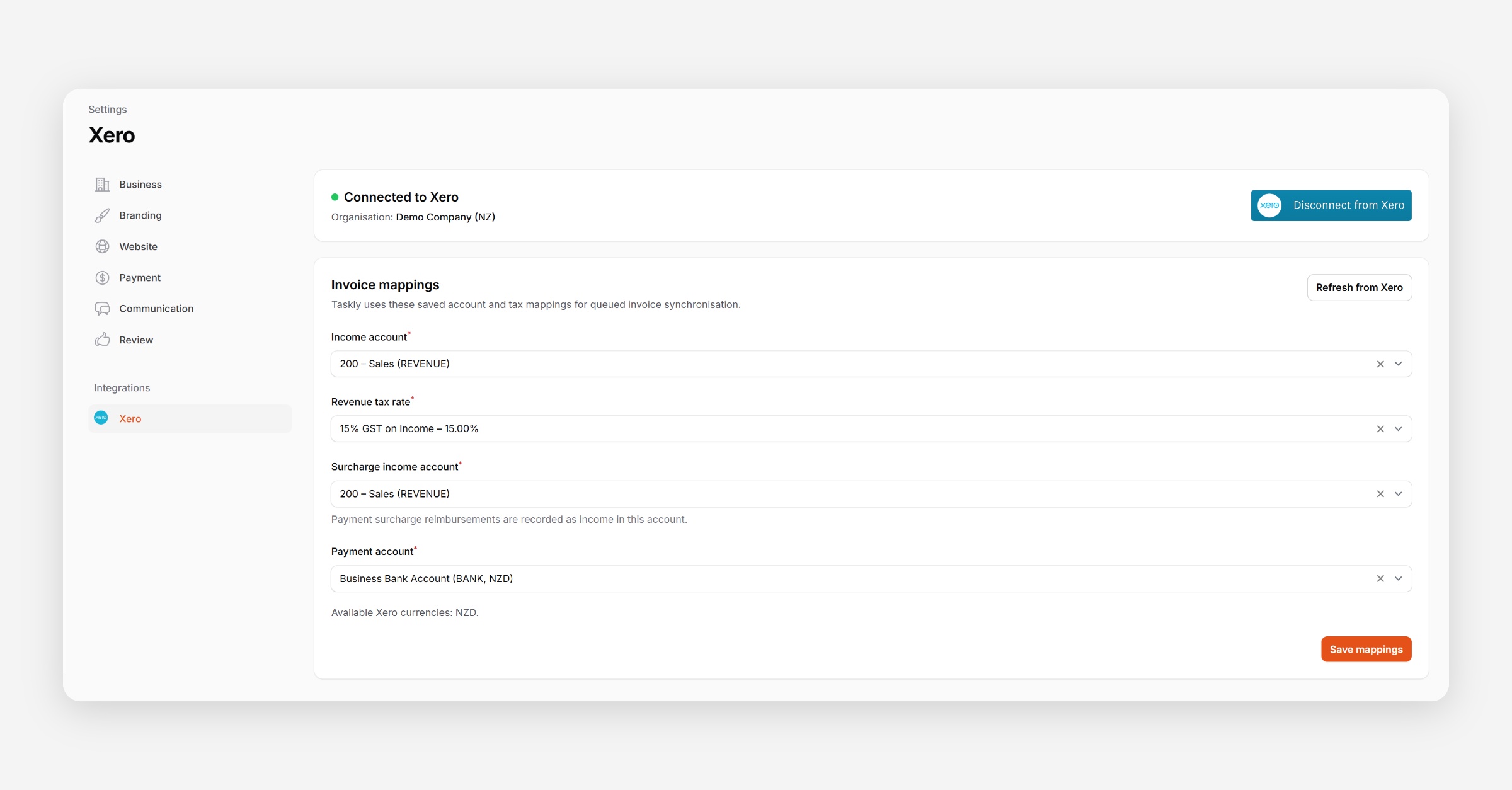
Taskly's integration with Xero allows you to send your invoices to Xero, and keeps payments in sync between both systems in real time, saving you from reconciling everything by hand. The following article outlines how to connect Xero, and how invoices, payments, and surcharges sync between the two.
Connect Taskly to Xero
Go to Settings, then Xero Integration
Press Connect to Xero
Log in to Xero and authorise Taskly to access your organisation.
Select the Xero organisation to connect, if you have more than one.
Map your accounts to decide where you want Taskly transactions to flow. If you are unsure about which accounts you should be mapping to, we recommend speaking with your accountant.
Check Your Payment Account Is a Bank Account
This only applies if you have credit card surcharging turned on. If you don't charge a surcharge, you can skip this step.
Surcharges are sent to Xero as Receive Money bank transactions, so the account you map for payments must be set up in Xero as a Bank account. Surcharges can't post to accounts of other types, such as Current Asset. The income account you map for surcharges doesn't need any special setup.
In Xero, go to Accounting, then Chart of Accounts
Find the account you have mapped for payments in Taskly and check its Type is Bank
If it isn't, add it in Xero as a bank account by going to Accounting, then Bank accounts, and pressing Add Bank Account
Back in Taskly, go to Settings, then Xero Integration, and map the new bank account
Sync an Invoice to Xero
Syncing an invoice to Xero isn't automatic — you send each invoice across manually.
Go to Invoices and open the invoice you want to sync
Press Actions
Press Send to Xero
Once synced, the invoice's Xero sync status updates to Synced, and a Xero Invoice reference appears on the invoice. Press View in Xero, or press the Xero invoice number itself, to open the invoice directly in Xero.
If you've added a PO Number to the invoice in Taskly, it's appended to the Xero invoice number.
If a sync fails, an alert appears in your Notification Log explaining why.
Once an invoice has been sent to Xero, its line items can no longer be edited in Taskly. If it needs to change, void the invoice and raise a new one.
What Syncs to Xero
Invoices — when an invoice is raised in Taskly, it can be pushed to Xero as an invoice.
Payments — payments sync bidirectionally in real time. If a payment is recorded in either Taskly or Xero, Taskly marks the invoice as paid once the full balance has been paid in either system.
Surcharges — if a payment includes a surcharge, this is synced to Xero as a separate Receive Money bank transaction, rather than as a line item on the invoice. It is coded to the surcharge income account you mapped when you connected Xero.
Taskly does not sync your Stripe (or other processor) fees to Xero. This is standard practice for Stripe-Xero setups — reconcile these separately from your Stripe or bank statements if needed.
GST Treatment for Surcharges
The GST treatment applied to a surcharge follows Taskly's revenue tax rate, overriding whatever default tax rate is set on the surcharge account within Xero.
Disconnecting Xero
If you disconnect the Xero integration, existing invoices keep their link back to Xero. New invoices and payments will stop syncing until you reconnect.
Was this helpful?