
Setup and Manage Recurring Bookings
Taskly allows you to create recurring booking series so that repeat jobs are scheduled automatically. The following article outlines how to set up and manage recurring bookings.
Taskly allows you to create recurring booking series so that repeat jobs are scheduled automatically. The following article outlines how to set up and manage recurring bookings.
Recurring bookings are made up of one Upcoming booking (the next job due) and any number of Planned bookings (future jobs in the series). Planned bookings move into Upcoming automatically based on your booking reminder settings.
Create a Recurring Series from a Quote
Go to Booking Requests and open the request you would like to create a series for
Press Send Quote and complete the Schedule step, setting the date of the first booking
On the Payment step, set your pricing and invoice settings
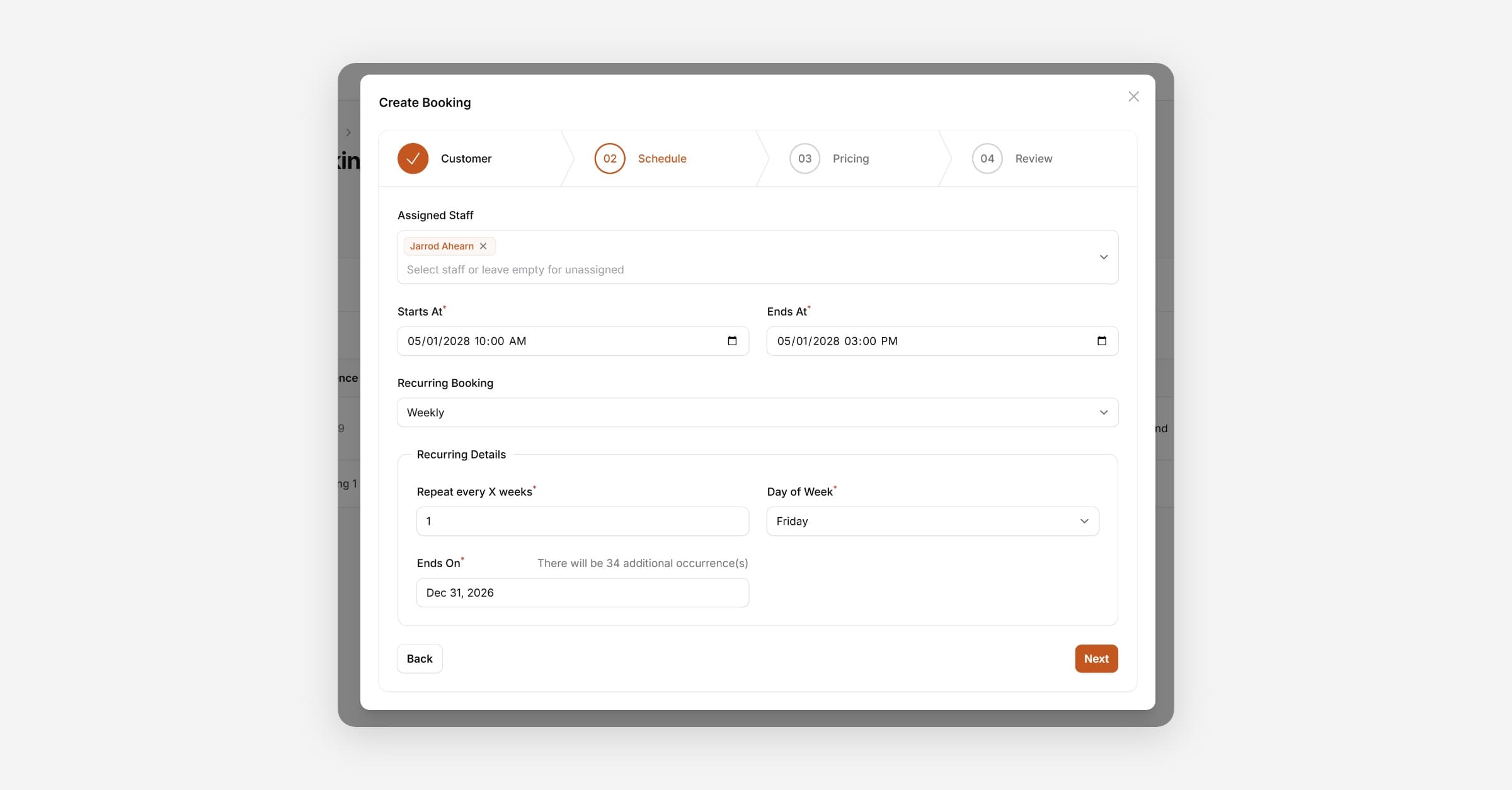
Enable Recurring Booking and set the frequency and end date — the total number of bookings will be shown
Complete the Review step and press Send Quote
Once the customer accepts, the full series is created automatically. Recurrence details are shown on the quote.
You can adjust the price for each individual booking when you mark it as complete — useful when the scope of work varies between visits.
Create a Recurring Series via Direct Booking
Go to Bookings and press + Create Booking
Complete the Customer step
On the Schedule step, set the date of the first booking, then set the Recurring Booking frequency and end date
Complete the Pricing and Review steps and press Create Booking
View Bookings in a Series
The next booking appears in Upcoming. Future bookings appear in Planned.
Planned bookings move to Upcoming automatically based on your Booking Reminder setting — at which point the customer also receives their reminder.
Update a Booking in a Series
Open the booking and press Update Booking
Make your changes to staff, date/time, or address
Choose how to apply the update:
Press Update Booking to apply changes to this booking only
Press Update Series to apply the changes to this booking and regenerate all future planned bookings, inheriting the updated date/time, staff, and address
When you press Update Series, future bookings are regenerated from the edited booking as the new anchor. The series' repeat pattern is preserved — for example, if the series repeats weekly, future bookings will still follow that cadence from the new date.
Edit the Series Schedule
Edit Series is for changing the recurrence pattern only — for example, switching from weekly to fortnightly, changing the day of the week, or extending the end date. It does not change the date/time, staff, or address.
Open any booking in the series
Scroll to the Series tile and press Edit
Update the Repeat Type, Repeat every X weeks, Day of Week, and/or Ends On date
Press Submit
Future bookings are regenerated under the new pattern using the existing booking's time and details. No notification emails are sent.
Cancel a Series
Open any booking in the series and press Cancel Booking
Enter a Reason for the cancellation
Press Cancel Series to cancel all future planned bookings, or Cancel Booking to cancel this booking only
Update Series vs Edit Series — What's the Difference?
These are two distinct features that are easy to confuse.
Update Booking → Update Series | Edit Series | |
|---|---|---|
Change date/time | Yes — future bookings regenerate from new anchor | No |
Change staff/address | Yes | No |
Change repeat pattern (frequency, day, end date) | No | Yes |
Regenerates future bookings | Yes | Yes |
What future bookings inherit | New date/time, staff, and address from the edited booking | Same anchor booking's existing time/staff/address, under the new pattern |
Sends notifications | Optional | No |
Use Update Series when you want to change when the job happens or who does it.
Use Edit Series when you want to change how often the job repeats.
Was this helpful?