
Request and Manage Bulk Bookings
Taskly allows you to accept booking requests that cover multiple properties and dates in one go. The following article outlines how to enable and manage bulk booking requests.
What is a Bulk Booking?
A bulk booking is a single request from a customer that covers more than one property, each with its own set of requested dates. This suits customers such as property managers who look after several sites and want to request servicing for all of them at once, rather than submitting a separate booking request for each address.
Enable Bulk Booking
Go to Settings, then Website Settings
Turn on Bulk Booking Enabled
Press Copy Bulk Booking URL to get the link to share with property managers.
What the Customer Sees
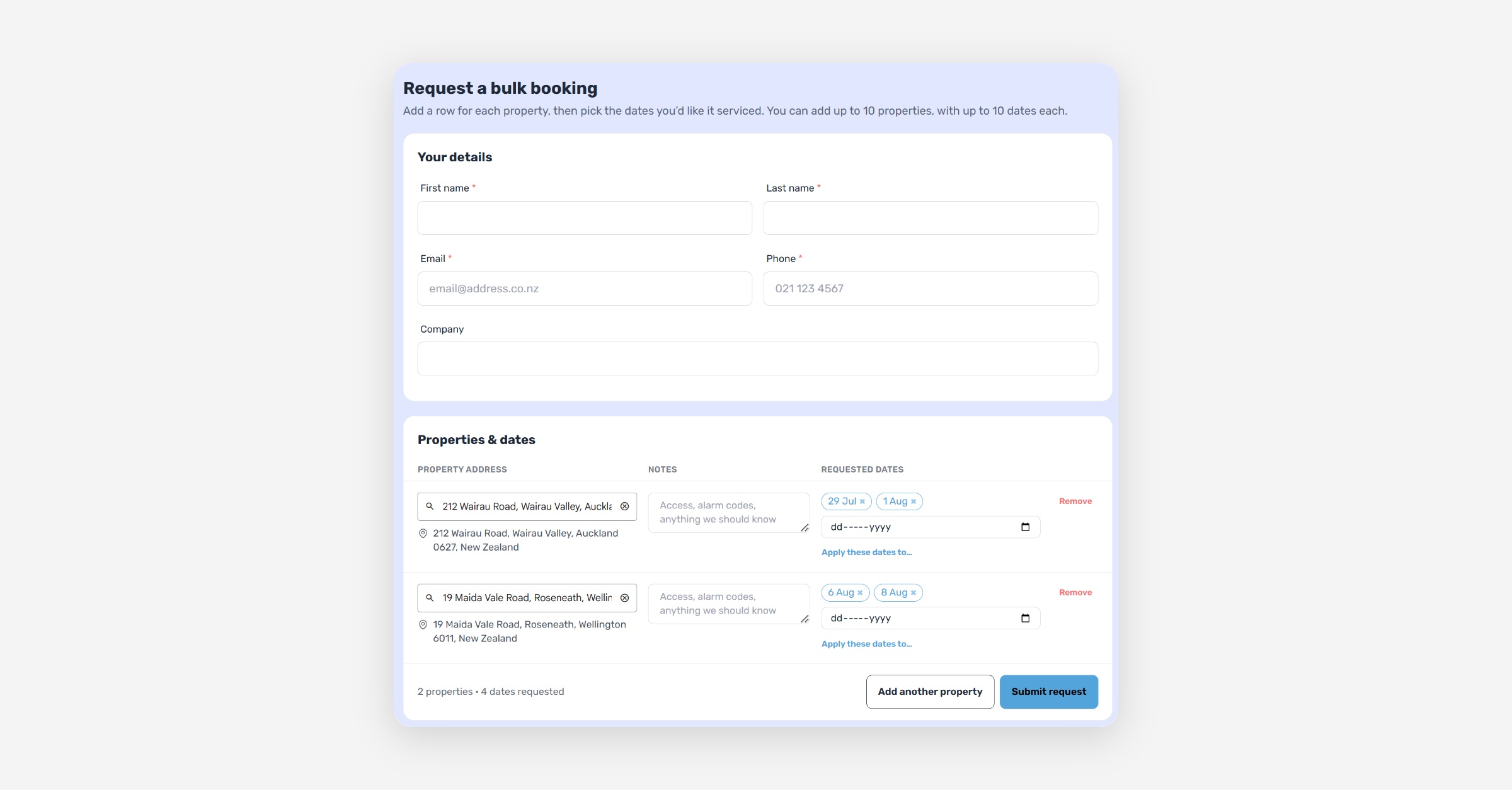
The customer opens the bulk booking link and enters their contact details.
They add a row for each property they want serviced, searching for the address and adding notes such what they need, access details, or alarm codes.
For each property, they select their requested dates.
They press Submit request
Customers can add up to 10 properties per request, each with up to 10 requested dates (100 requests total).
Once submitted, the customer receives a notification confirming their bulk booking request has been received, and an admin notification is sent to let your team know a new request is waiting.
Manage a Bulk Request
Go to Bulk Requests to see the list of bulk booking requests.
Press into a request to view its details
Each request shows how many of the requested dates have been booked, the properties and their requested dates, and the customer's contact details.
All properties submitted on a bulk request are stored against that customer's contact record, with the first address entered set as the primary address. Learn how to manage a customer's addresses.
Book the Requested Dates
Book all requested dates at once
Each date is booked on the day it was originally requested, using the times you set.
Select the dates you want to action using the checkboxes or select all.
Press Book selected dates
Enter the Start and Finish time
Select the Services
Select the Assigned Staff, or leave this empty for unassigned.
Press Create Bookings
Book a dates individually
This lets you set different times, services, or staff for individual properties within the same request.
Press into a single requested date
Enter the Start and Finish time
Select the Services
Select the Assigned Staff, or leave this empty for unassigned
Press Create Booking
Communication and Invoicing for Bulk Bookings
Customers do not receive an individual confirmation email for each booking created from a bulk request. Providers assigned to a booking receive the standard booking notification.
Once created, each booking follows Taskly's standard communication flow from that point on, including reminders and completion emails, based on your notification settings.
Bulk bookings do not have an invoice generated automatically as they have no price attached to them. Once a booking is complete, it can be attached to an ad hoc invoice along with other bookings for that customer so they can be grouped on a single invoice.
Close a Bulk Request
Once you've finished booking the dates you plan to action, press Send message to send a message template to the customer to let the know their dates have been booked. They will be sent a link to the customer portal so they can view all of their dates.
Bookings created from a bulk request behave exactly like any other booking from this point forward, and appear in your standard Bookings list alongside everything else.
Press Close request
If any requested dates still have no booking when you close a request, Taskly will let you know before confirming — closing leaves those dates unscheduled.
Was this helpful?