
Docs / Job Management
Setup and Manage Recurring Bookings
Taskly allows you to streamline the process of managing recurring bookings. The following guide explains how to set up and manage a recurring series.
Creating a Series from a Quote
Click Booking Requests
Select the Booking Request you would like to create a recurring booking for.
Click Send Quote
Fill out the Quote details. The booking date you enter will be the date of the first booking in the series.
The price you set is what will appear on the customers initial quote, but for each individual booking in the series you are able to adjust the price when you mark the booking as completed (which triggers the invoice to be sent to a customer).
Ensure Payment Required is set to After booking is completed.
Enable Recurring Booking
Click the Repeat every X weeks field and enter how long you would like the series to run for.
Click the Ends On field and enter when you would like the series to finish. The number of bookings will be displayed.
Finish the Quoting process and click Send
The recurrence details will be displayed on the customers quote.
Planned bookings will move to Upcoming based on your Send Booking Reminder setting. For example, if your Booking Reminder is set to 3 days, then 3 days before the next Upcoming booking, the customer will be sent a reminder about it and it will move into a Planned state.
Creating a Series from via Direct Booking
Click Bookings and Press Create Booking
Fill out the Customer details.
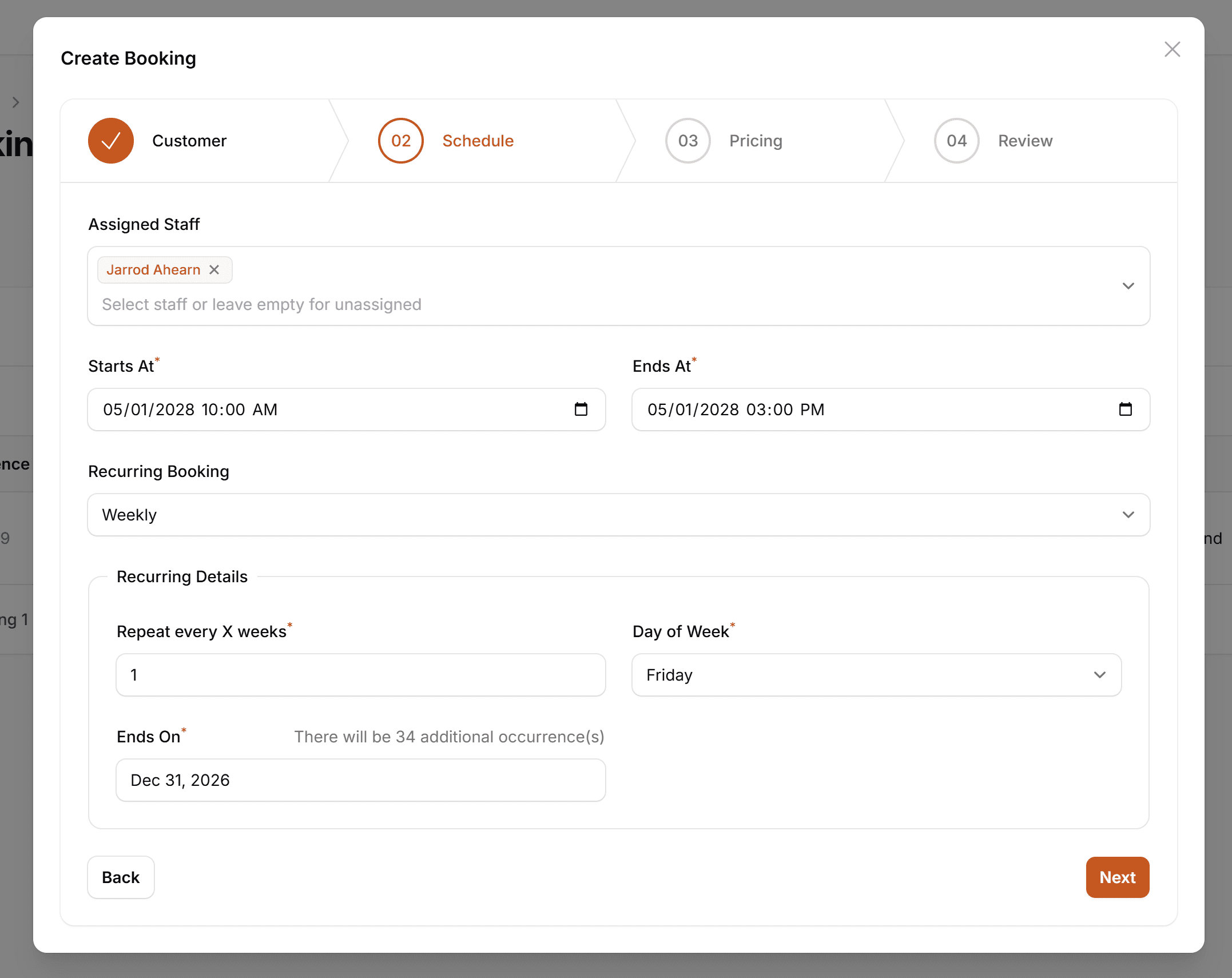
On the Schedule details, enter the date of the first booking in the series.
Enable Recurring Booking
Click the Repeat every X weeks field and enter how long you would like the series to run for.
Click the Ends On field and enter when you would like the series to finish. The number of bookings will be displayed.
Finish the Pricing and Review steps.
The price you set is what will appear when raising an invoice for the booking, but for each individual booking in the series you are able to adjust the price when you mark the booking as completed (which triggers the invoice to be sent to a customer).
The next booking in the series will be displayed in the Upcoming bookings view.
Additional bookings in the series will be displayed in the Planned bookings view.
Planned bookings will move to Upcoming based on your Send Booking Reminder setting. For example, if your Booking Reminder is set to 3 days, then 3 days before the next Upcoming booking, the customer will be sent a reminder about it and it will move into a Planned state.
Edit a Booking Series
Click Bookings
Open the Booking with the series you would like to manage.
You can choose to edit either the staff member/s on the booking, the date, time, and address.
If you select Update Booking, only that individual booking will be changed. If you select Update Series, all bookings in the series will be updated.
When updating the Date for a Series, all future Planned bookings will shift relative to the new date.
Example:
You have a weekly series. The booking you are editing is on Jun 22nd and you move it to Jun 29th and press Update Series - all future planned bookings will shift out by 7 days based on the change.
Cancel a Series
Open the Booking with the series you would like to cancel.
Click Cancel Booking
Enter the Cancellation Reason and click Cancel Series
This action will cancel the next planned booking and all upcoming bookings. If you want to cancel a single booking only select Cancel Booking instead of Cancel Series.
View and Update Number of Future Recurrences
Click Bookings
Open the Booking with the series you would like to adjust.
From the Series tile, click Edit
Click the Repeat every X weeks field to change how frequent the booking should be, or adjust the ends on. As you make changes, the total number of additional bookings will be displayed.
Click Submit. All future planned bookings will be updated based on the new series schedule.
Was this helpful?